
If your controller is not working on PC, or doesn’t show up at all, start with the simplest catch. A browser doesn’t list a controller until you press one of its buttons with the page open and in front. So connect it, click once on the page, and press a face button such as A or Cross. If it still doesn’t appear, the cause is almost always the cable, the Bluetooth pairing or another program holding the controller. The checks below find which, for Xbox, PlayStation and Nintendo controllers on Windows 11 and macOS.
First, check whether your computer sees it
This catches most people. If a controller was already connected when the page loaded, the browser tells the page about it only when you press a button or move a stick. Firefox is stricter: it shows a controller only after you use one while the page is visible, to stop sites identifying you by your hardware. Once one controller has been seen, others appear too.
- Open the gamepad tester and keep that tab in front.
- Click anywhere on the page so the window has focus.
- Press A, B, Cross or Circle, not the Home or PS button. Your system often keeps those for itself.
- Still nothing? Reload the page with the controller connected and press a button again.
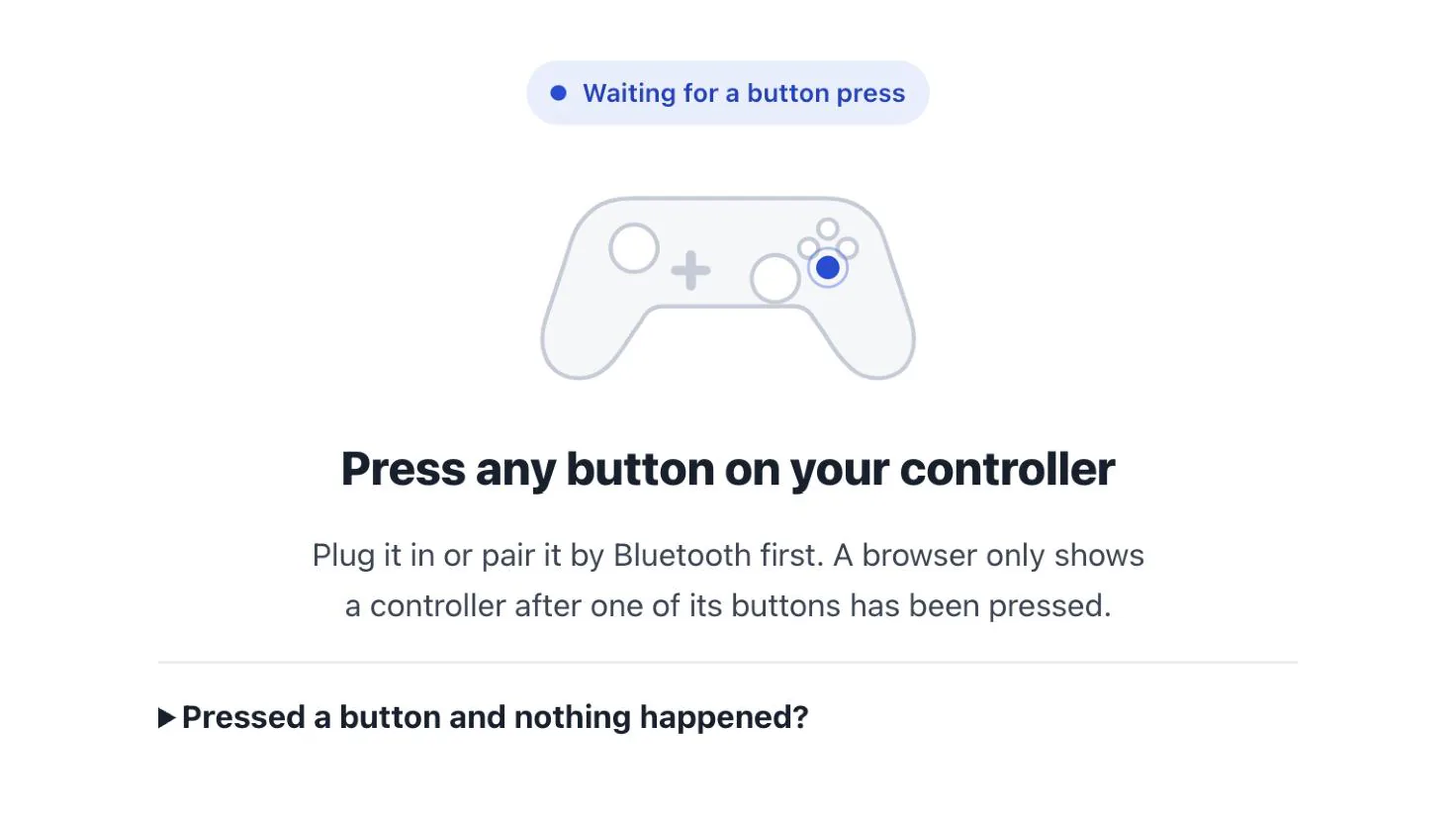
The tester stays on this screen until a button is pressed, even when the controller is already connected. The answer splits the problem in two. If the controller appears in the tester, the cable, the pairing and the operating system are all doing their job. The fault is in the game or a launcher, so skip to the section on games further down. If it doesn’t appear, something earlier in the chain is stopping it, and the next four steps go through that chain in order.
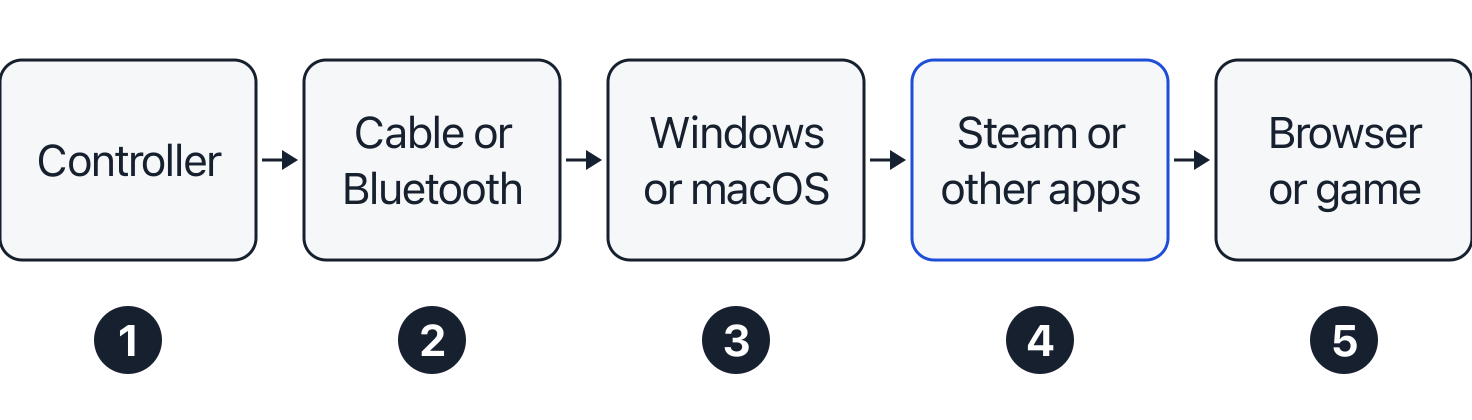
Each link has to pass the controller on. If the gamepad tester sees it, links 1 to 3 are fine and the problem is a program or the game itself. Check the cable and the USB port
Some USB cables only charge and carry no data. The controller lights up, so it looks connected, but the computer never sees it. It’s an easy reason for a wired controller to go undetected on a PC, because the cable gives no clue from the outside. Apple’s instructions for PlayStation controllers ask for a cable that supports both data and charging, and the same goes for every controller here.
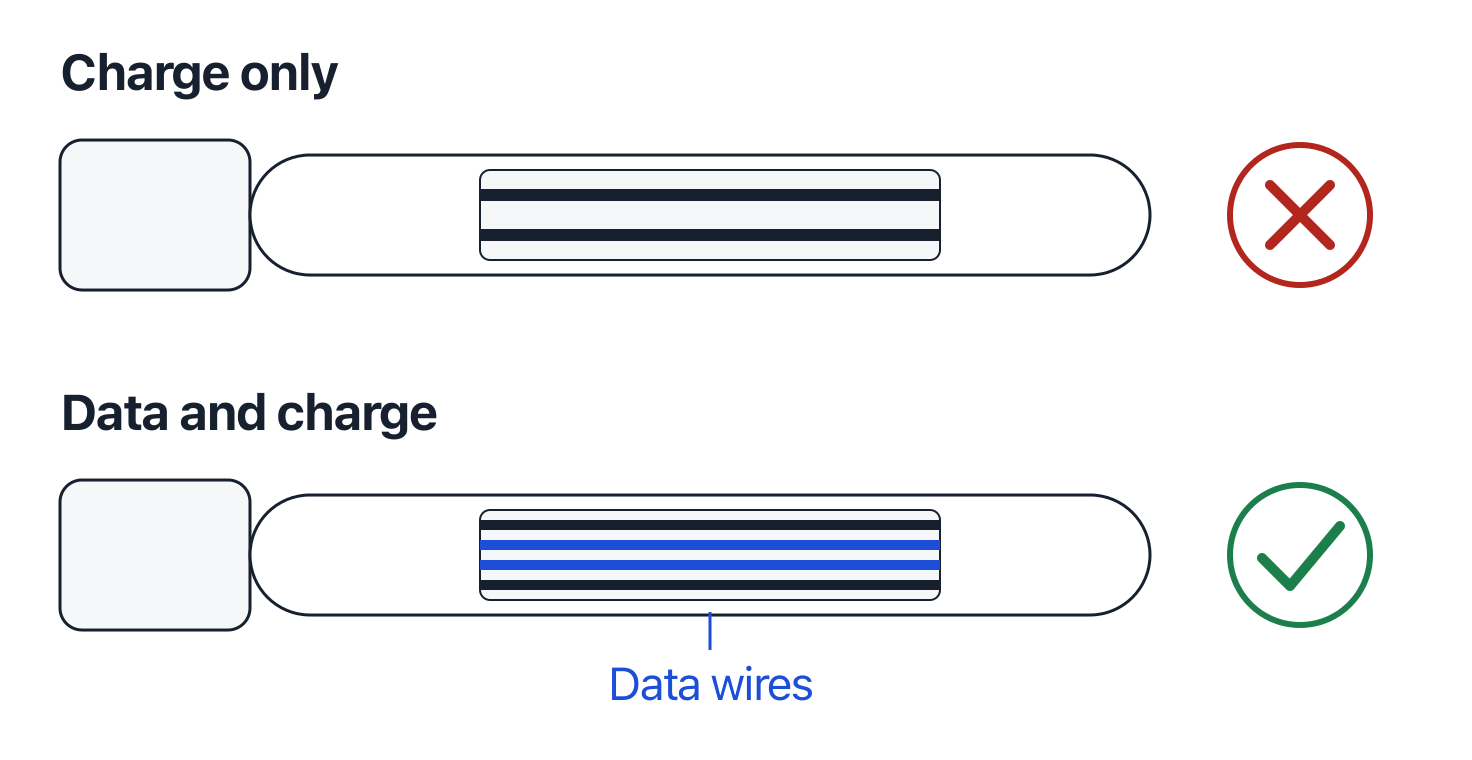
A charge-only cable has the power wires but not the data wires, so the controller charges and the computer never hears from it. Use the cable that came with the controller, or one you know moves files between a phone and a computer. Plug it straight into the computer rather than a hub, a monitor or a keyboard port, and try a different USB port if the first does nothing. If the controller works on one port and not another, the port is the problem, not the controller.
Pair it again over Bluetooth
Turning a wireless controller on isn’t enough for a new device: it has to be in pairing mode before your computer can find it. Then add it in Windows 11 under Settings, Bluetooth & devices, Add device, Bluetooth, or on a Mac under System Settings, Bluetooth, where you click Connect next to it. If a controller is not showing up on Bluetooth on your PC at all, check this step before anything else.
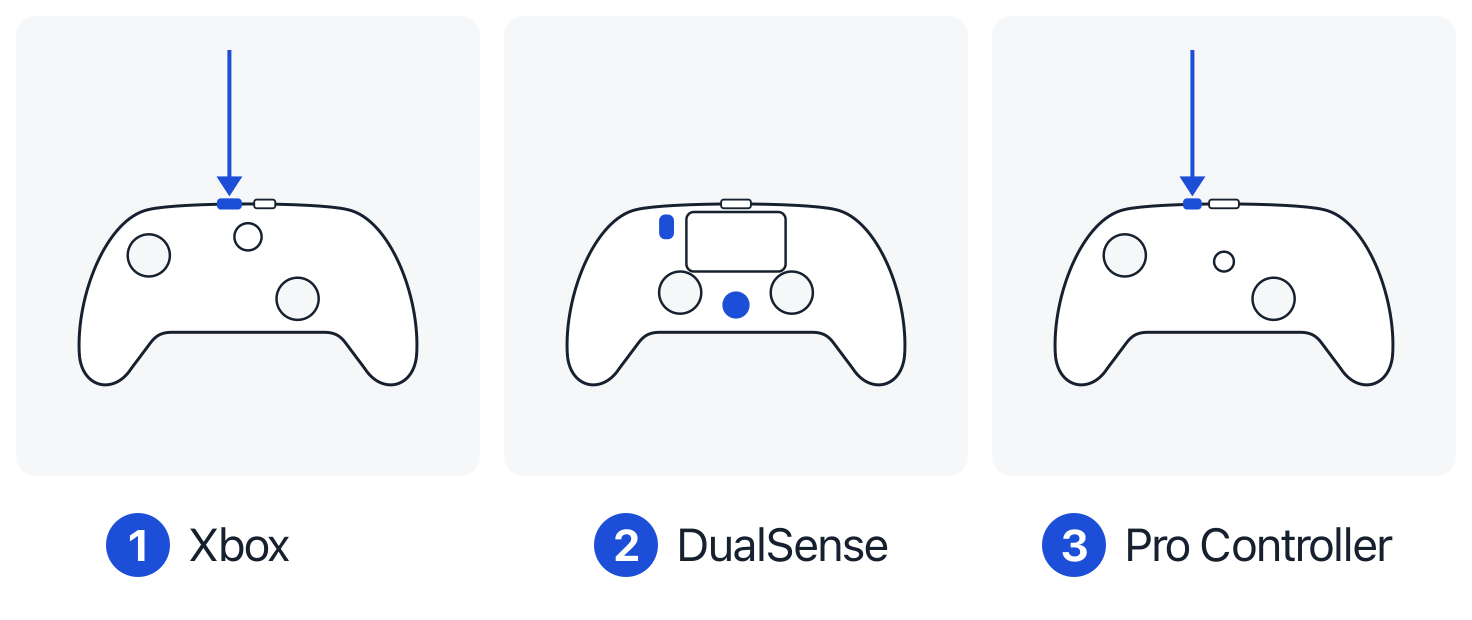
1 Xbox: the pair button on the top edge. 2 DualSense: hold Create, then PS. 3 Pro Controller: the SYNC button on the top edge, next to the USB-C port. Pick your controller
Xbox controllers
Only some Xbox controllers have Bluetooth. Apple lists the ones that do: the Xbox Wireless Controller with Bluetooth (model 1708), the Xbox Series X and Series S controllers, the Elite Series 2 and the Adaptive Controller. An older Xbox One controller without Bluetooth needs a USB cable or the Xbox Wireless Adapter on a PC. To pair a Bluetooth model, press the Xbox button to turn it on, then press and hold the small pair button on the top for a few seconds.
DualSense, DualSense Edge and DualShock 4
First make sure the player light is off (hold the PS button until it goes out) and unplug any USB cable. On a DualSense or DualSense Edge, hold the Create button, then press and hold the PS button until the light bar blinks. On a DualShock 4, do the same with the Share button. Sony lists Windows 10 (64-bit) and Windows 11 for the DualSense, and macOS Big Sur 11.3 or later. For the DualShock 4 on Windows, Sony lists a micro USB cable or its DualShock 4 USB wireless adaptor rather than Bluetooth.
Switch Pro Controller, Switch 2 Pro Controller and Joy-Con
Nintendo doesn’t publish steps for pairing its controllers with a computer. The SYNC button is what makes them pair. On both Pro Controllers it is on the top edge, next to the USB-C port. On a Joy-Con it is on the side that slides onto the console. Detach a Joy-Con first, hold SYNC for a second or so, then look for the controller in your Bluetooth list. Apple’s support pages name Xbox and PlayStation controllers, not Nintendo’s, so on a Mac a Nintendo controller may pair and still not work everywhere.
If pairing fails on any controller, remove it from the Bluetooth list and pair it again. In Windows 11 that’s Settings, Bluetooth & devices, then More options (…) beside the controller, Remove device; on a Mac it’s Forget This Device. If Windows doesn’t list the controller at all, Microsoft suggests setting Bluetooth devices discovery to Advanced. Keep the controller close to the computer while you pair.
Close programs that hold the controller
Steam is the usual one. Valve’s documentation explains that on Windows, Steam Input hooks the ways games read controllers and presents the controller to them as an emulated Xbox controller. That changes what other programs see. Quit Steam completely (from the system tray on Windows or the menu bar on a Mac, not just by closing its window), reconnect the controller and press a button.
Do the same with remapping tools, other game launchers and controller utilities. DS4Windows, which many people use with PlayStation controllers on a PC, can be set to hide the real controller from other programs while it runs. A controller can then seem to vanish when it’s simply being held. If the controller works with everything closed, you know where the conflict is. Open the programs one at a time to find which one, then change that program’s controller settings rather than living without it.
Check Windows 11 and macOS settings
Pick your system
Windows 11 checks
- Open Settings, Bluetooth & devices. A Bluetooth controller should be listed as connected. If it isn’t, remove it, put it back in pairing mode and add it again.
- Press Windows key and R, type
joy.cpland press Enter. This is the Game Controllers panel. If your controller is listed and its Properties page reacts when you press buttons, Windows can see it, and the problem is the browser or another program. - If it isn’t listed there, it isn’t reaching Windows. Go back to the cable and pairing steps.
- Update the controller: the Xbox Accessories app for an Xbox controller, and Sony’s PlayStation Accessories app for a DualSense or DualSense Edge.
macOS checks
Apple’s pages cover the Xbox controllers with Bluetooth listed above and Sony’s DualShock 4, DualSense, DualSense Edge and Access controller. PlayStation controllers pair and connect by themselves when you plug them straight into a Mac with a data cable.
- Open System Settings, Bluetooth and check that the controller says Connected.
- Open System Settings, Game Controllers. If your controller is named there, macOS sees it.
- If it isn’t, choose Forget This Device in Bluetooth settings, then pair again. Apple also suggests disconnecting Bluetooth devices you aren’t using and charging the controller with its own charger.
- If the Mac says an Xbox controller needs a firmware update, Apple sends you to Microsoft: update it with the Xbox Accessories app on an Xbox or a Windows PC.


Xbox controller not connecting to PC
An Xbox controller has three ways onto a Windows PC: a USB cable, Bluetooth, or Microsoft’s Xbox Wireless Adapter. When one fails, try another. If the controller works by cable but won’t connect over Bluetooth, the controller is fine and the pairing is the problem.
When your Xbox controller won’t connect to the PC wirelessly, check first that it has Bluetooth at all, using Apple’s list above. If it doesn’t, Bluetooth was never going to work and you need the cable or the adapter. If it does, put it in pairing mode with the pair button rather than just switching it on, and turn off or unplug the Xbox it normally talks to. A controller switched on near its own console will often go back to the console instead.
Then update it. Plug it in with a data cable, open the Xbox Accessories app and let it install any update it offers. It’s worth doing before you give up on Bluetooth, and a Mac may ask for an update before it will use the controller.
If Windows tells you to try connecting your device again, remove the controller under Bluetooth & devices, restart the PC, and pair from scratch. If it still fails on Bluetooth but works by cable, live with the cable or the adapter for now: the controller itself isn’t broken.
PS5 controller not connecting to PC
A DualSense works on Windows 10 (64-bit) and Windows 11, by USB-C cable or Bluetooth. If your PS5 controller is not connecting to the PC, check the pairing first, then the cable. The controller has to be in pairing mode, with Create and PS held until the light bar blinks. The PS5 can get in the way too: if it’s in the same room and on, the controller may reconnect to it. Switch the console off at the wall while you pair with the computer.
A DualSense can connect perfectly and still seem not to work, because PC games differ in which controllers they support. Sony points to the Controller Support line on a game’s Steam store page, which says whether it has full or partial controller support. Haptic feedback on a PC needs a USB connection.
Connected by USB, a DualSense can also turn up among Windows’ sound devices, as a speaker and microphone. That’s expected: Sony says the built-in speaker and microphone work on a Windows PC when the game supports them. If Windows switches your sound to the controller, pick your usual output again under Settings, System, Sound. To update the controller from a PC, use Sony’s free PlayStation Accessories app, and don’t disconnect the controller during the update.
It shows up but doesn’t work in my game
If the controller is detected but not working in a game, the controller is fine. The gamepad tester has just shown you that. What’s left is how the game, or something between you and the game, reads it.
- Check the game’s own settings for a controller or gamepad option, and its Steam store page for controller support.
- Try the game with Steam closed, or with Steam open if it didn’t work before, because Steam Input changes what the game sees.
- Unplug other controllers, wheels and joysticks. Some games only listen to the first controller they find.
If it works on the console but not the PC, the controller usually went back to the console it knows. Turn the console off at the wall while you use the computer, and pair with pairing mode rather than just switching the controller on.
Browser differences
Chrome and Edge show a controller after a button press. They recognise the layout of common controllers and show it as standard; others appear with numbered buttons and axes, which is normal. Both can make a controller vibrate. Firefox shows a controller only after you use it with the page visible, and it can’t make one vibrate. Safari reads controllers too; if one isn’t found, check it against the controllers Apple names above first.
A controller that works in one browser but not another on the same computer is almost never broken. Update the browser, then try the other one to rule it out. If the controller isn’t working in the browser at all, the page has to be in front and focused when you press the button. It must also be a secure (https) page: browsers don’t share controllers with anything else.
Questions
How do I check if my controller is connected to my PC?
Open the gamepad tester and press a button: if it appears, the PC sees it. Without a browser, Windows’ Game Controllers panel (joy.cpl) lists every controller Windows can see, and on a Mac, System Settings, Game Controllers does the same.
Is my controller XInput or DirectInput?
Xbox controllers use XInput, the way most Windows games expect a controller to talk. PlayStation and Nintendo controllers reach Windows as general game devices instead, which is why some games ignore them until Steam Input or a remapping tool presents them as an Xbox controller. On Windows, the name the gamepad tester shows often includes the word XInput for an Xbox-style controller.
My controller isn’t showing up in Device Manager
Then Windows isn’t receiving anything from it, and no setting will help until it does. Go back to the cable: try a data cable, another port, and the controller on another computer if you can. If it shows nowhere, on any machine, with any cable, the controller itself may be faulty, and that’s a job for the maker’s repair service.
Why does a different button light up in the tester?
Your browser doesn’t recognise the controller’s layout, so it numbers the buttons in the order the controller reports them. Nothing is wrong with the controller. Chrome and Edge recognise the most common layouts, so trying one of them often puts the names right.
A stick moves on its own once it’s connected
That’s stick drift, a separate fault from connection. Measure it with the stick drift test, then read how to fix stick drift. Once the controller appears in the gamepad tester, press every button and push both sticks to the edge, so you know the rest of it works too.
Sources
Show all 18 sources
- MDN Web Docs: Using the Gamepad API, read 19 November 2026
- MDN Web Docs: Gamepad vibrationActuator, browser compatibility, read 19 November 2026
- Microsoft Support: Pair a Bluetooth device in Windows, read 19 November 2026
- Microsoft Support: Troubleshoot Bluetooth not connecting in Windows, read 19 November 2026
- Microsoft Learn: Game controller testing prerequisites (joy.cpl), read 19 November 2026
- Xbox Wire: Xbox February update (the Xbox Accessories app on console and PC), read 19 November 2026
- Xbox Wire: Xbox Wireless Adapter for Windows, read 19 November 2026
- PlayStation Support: How to use DualSense wireless controllers with PC, Mac and mobile devices, read 19 November 2026
- PlayStation Support: How to pair a DualShock 4 wireless controller with a supported device, read 19 November 2026
- PlayStation: PlayStation Accessories app for Windows, read 19 November 2026
- Nintendo UK: How to calibrate the controllers on Nintendo Switch 2 (SYNC button locations), read 19 November 2026
- Nintendo Support: How to pair the Nintendo Switch Pro Controller, read 19 November 2026
- Nintendo Support: How to pair Joy-Con controllers, read 19 November 2026
- Steamworks Documentation: Steam Input gamepad emulation, read 19 November 2026
- Apple Support: Connect a wireless game controller to your Apple device, read 19 November 2026
- Apple Support: Connect an Xbox wireless game controller to your Apple device, read 19 November 2026
- Apple Support: Connect a PlayStation wireless game controller to your Apple device, read 19 November 2026
- Apple Support: Connect a game controller to Mac, read 19 November 2026